
What your Mac already has
macOS comes with screenshot shortcuts (Apple Support):
- Shift-Command-3: the whole screen.
- Shift-Command-4: drag to choose an area. Press the Space bar before you click to capture a window.
- Shift-Command-5: opens the Screenshot app, with more options.
If you see a thumbnail in the corner of the screen, click it to edit the screenshot. By default, screenshots are saved to your desktop.
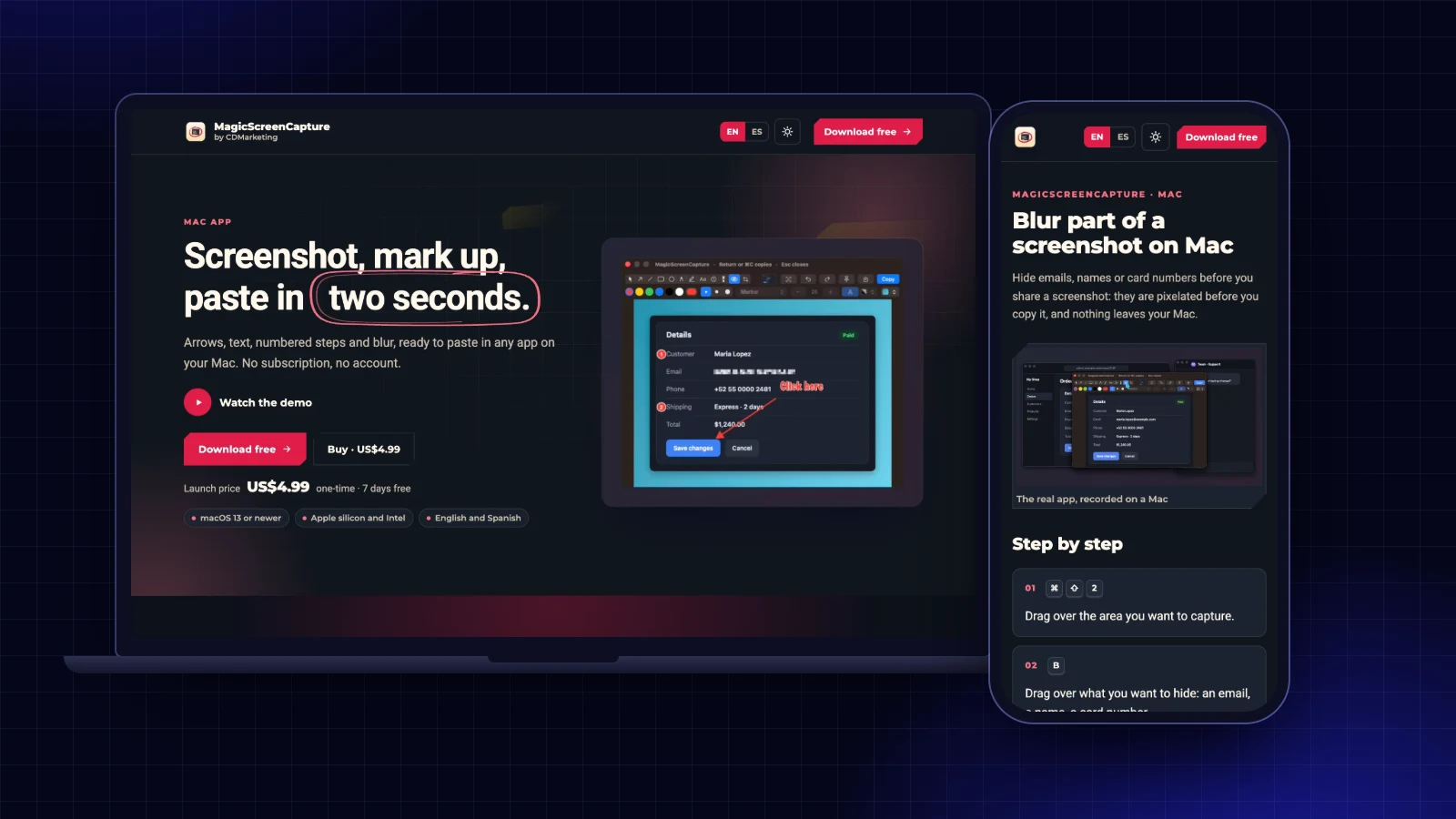
To make a screenshot explain itself, four techniques do the job. Each one has its own step-by-step guide with a video, made with MagicScreenCapture, the screenshot app we built at CDMarketing.
Try it free for 7 daysBuy it: US$4.99 one-timeOn the Mac App Store: US$5.99
1. Arrows and text: show where to click
The most useful one for support, sales and training: an arrow points at the button and a short text, such as “Click here”, says what to do. No more “where is that?”. How to do it: add arrows and text to a screenshot on Mac.
2. Numbered steps: explain the order
When there are several steps to follow, the numbers 1, 2, 3 on one image replace several screenshots and a long manual. It works for teaching someone a system or how to fill in a form. How to do it: number the steps in a screenshot on Mac.
3. Blur: protect private data
Before you send a screenshot, check for emails, phone numbers, names or card numbers. If they aren’t needed, blur them: the screenshot still does its job without exposing anyone. How to do it: blur part of a screenshot on Mac.
4. Scrolling screenshot: the whole page
A web page, a chat or a long list doesn’t fit on one screen. With a scrolling screenshot you scroll down and the app joins everything into one image, even with fixed bars. How to do it: take a scrolling screenshot on Mac.
MagicScreenCapture: all four, in two seconds
We built MagicScreenCapture at CDMarketing to do all of this without extra steps: ⌘ ⇧ 2 captures an area, you mark it up with arrows, text, numbers or blur, and ↩ copies it, ready to paste in an email, a chat or a document.
- For macOS 13 or newer, on Macs with Apple silicon or Intel.
- In English and Spanish.
- US$4.99, one-time: no subscription, no account.
- 7 days free to try it.
Comparing options? See the comparison with CleanShot X, Shottr, Snagit and the macOS tool: prices and features, from their official sites.
Try it free for 7 daysBuy it: US$4.99 one-timeOn the Mac App Store: US$5.99